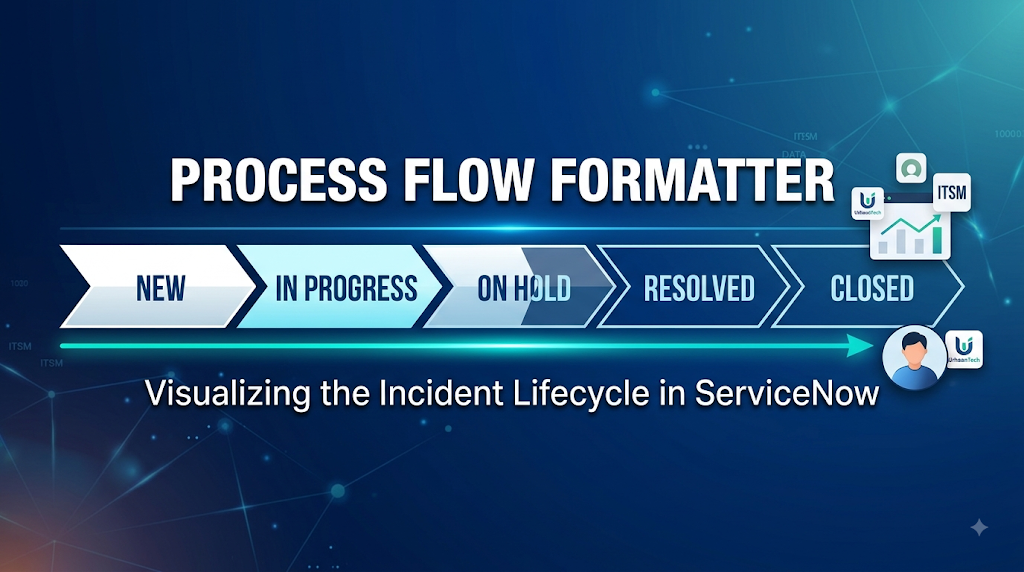
What is a Process Flow Formatter?
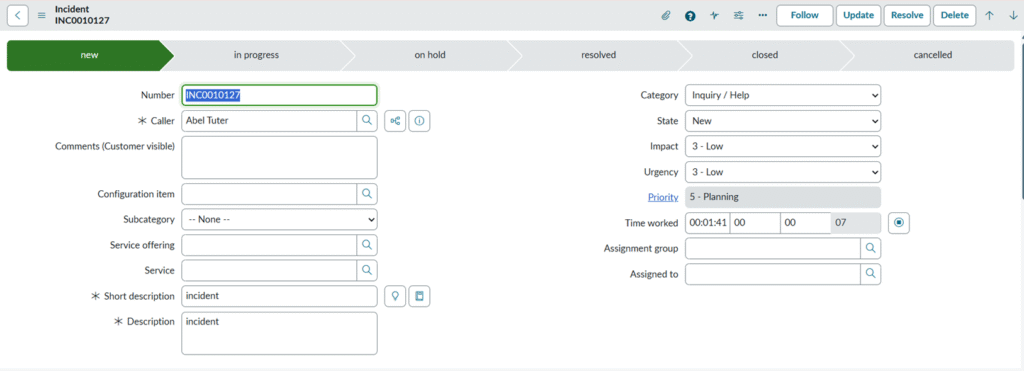
A Process Flow Formatter is a visual component available in ServiceNow that displays the progress of a record through different stages of a business process. In Incident Management, it appears at the top of the Incident form and provides a clear view of the current stage, completed stages, and upcoming stages in the incident lifecycle.
Unlike the State field, which simply stores the current status of an incident, the Process Flow Formatter presents the information in a graphical timeline, making it easier for users to understand the progress of the incident at a glance.
When is the Process Flow Formatter Used?
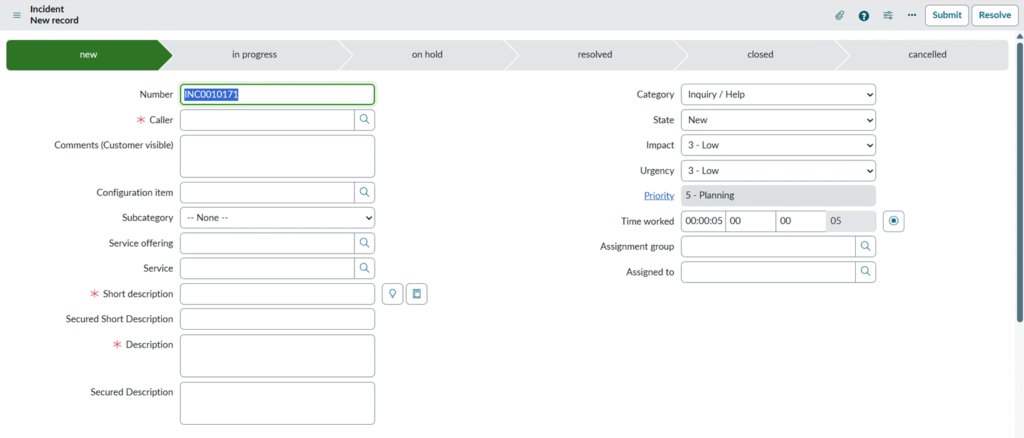
The Process Flow Formatter is used whenever a process involves multiple stages that users need to follow in a specific order. In Incident Management, it is visible throughout the entire lifecycle of an incident—from the moment the ticket is created until it is closed.
It is especially useful during daily service desk operations because agents can immediately identify the current stage of an incident without checking multiple fields.
Common situations where it is used :
- When a new incident is created.
- While an agent is investigating an issue.
- When the incident is waiting for customer or vendor response.
- After the issue has been resolved.
- Before and after closing the incident.
Whenever the State field changes, the Process Flow Formatter updates automatically to reflect the new stage.
Why is the Process Flow Formatter Used?
The main purpose of the Process Flow Formatter is to improve visibility and make business processes easier to understand.
In organizations handling hundreds or thousands of incidents every day, simply displaying the State field is often not enough. Service desk agents, managers, and support teams need a quick visual representation of where an incident currently stands.
The Process Flow Formatter helps by:
- Providing a visual overview of the incident lifecycle.
- Making it easier for new users to understand the process.
- Reducing confusion while handling incidents.
- Improving productivity by allowing agents to identify the current stage instantly.
- Ensuring that everyone follows the organization’s defined workflow.
- Helping managers track incident progress more effectively.
Instead of reading status values one by one, users can understand the complete journey of an incident through a single visual timeline.
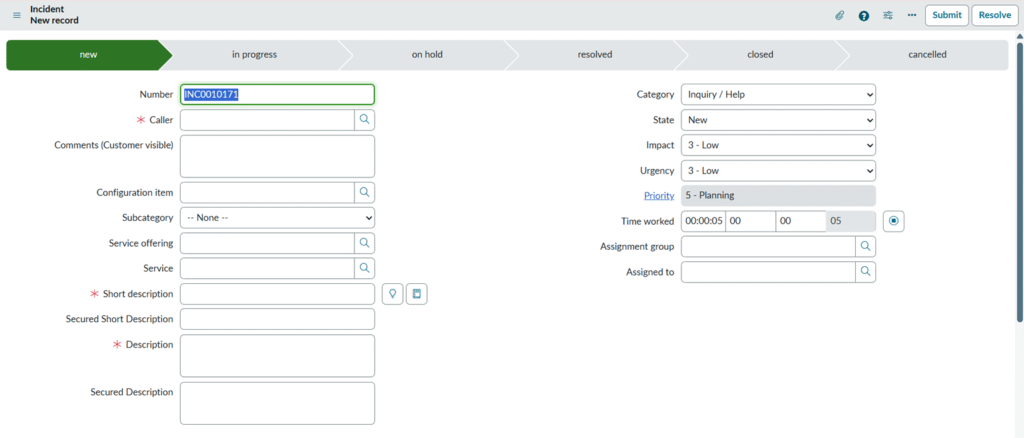
How Does the Process Flow Formatter Work?
The Process Flow Formatter works by reading the value stored in the State field of the Incident record. It does not store any data itself; instead, it acts as a visual representation of the incident’s current stage.
The working process can be explained in the following steps:
Step 1:
I navigated to the Process Flow configuration area in the platform.
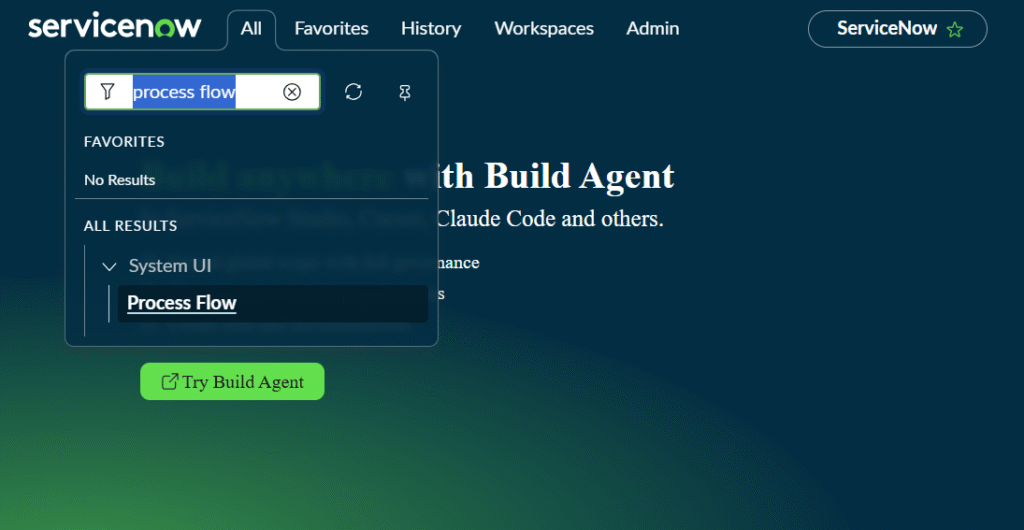
Step 2:
Opening Process Flow displayed the list of Flow Formatters.
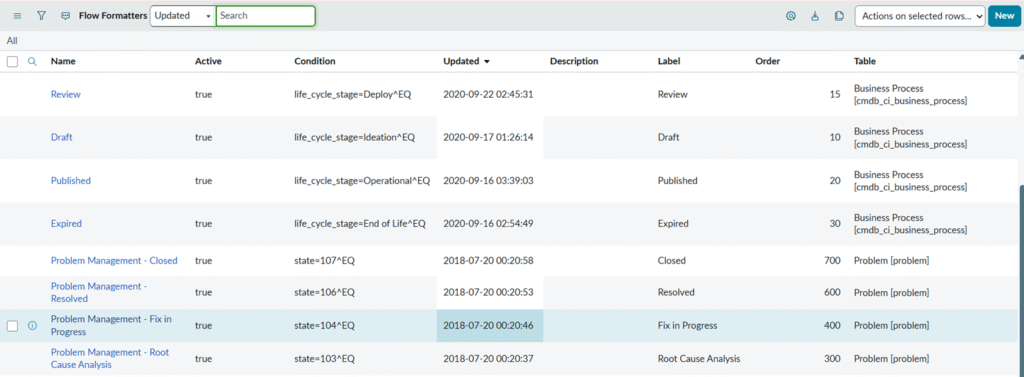
Step 3:
I created six Flow Formatters, corresponding to the Incident states that need to be displayed (New, In Progress, On Hold, Resolved, Closed, and Cancelled).
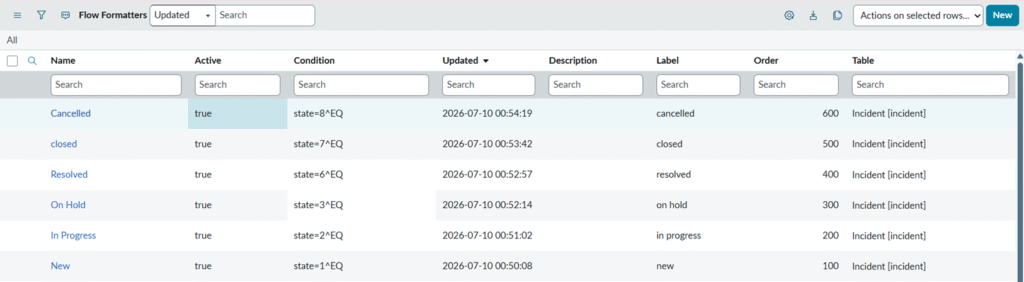
Step 4:
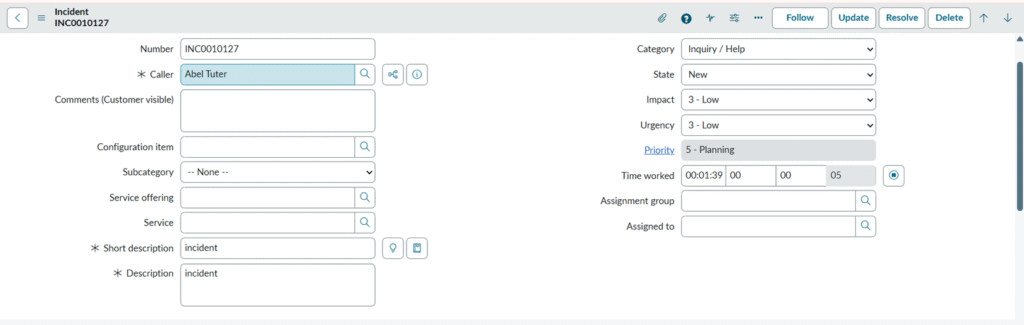
I navigated to All > Incidents, which opened the Incident list. From there, I opened an existing Incident record.
Step 5:
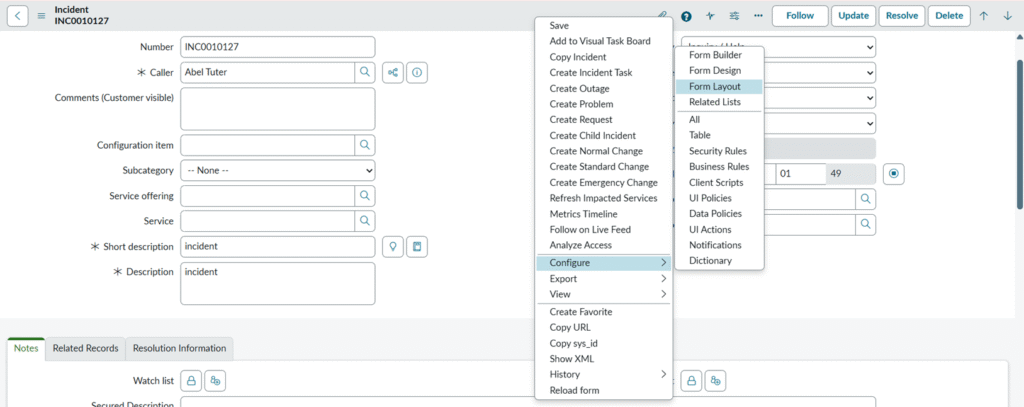
On the Incident form’s title bar, I right-clicked and selected Configure > Form Layout.
Step 6:
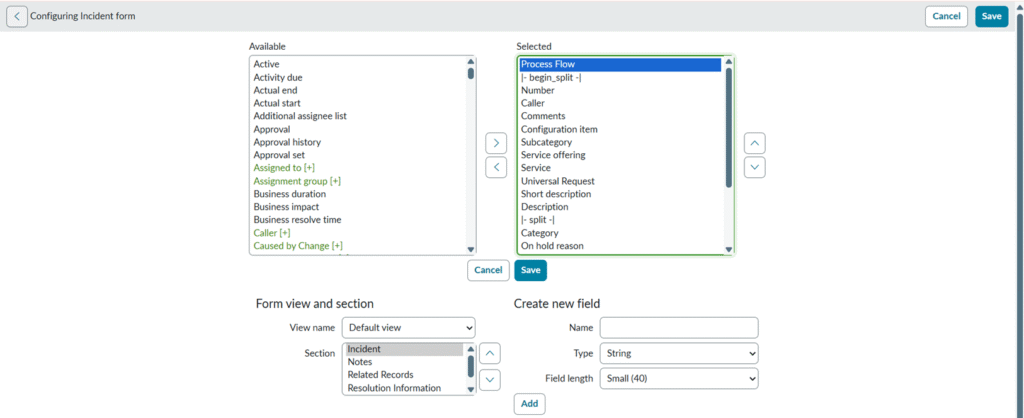
The Form Layout configuration window opened, showing two slush buckets: Available and Selected. I searched for “Process Flow” in the Available list, moved it to the top of the Selected list, and clicked Save.
Step 7:
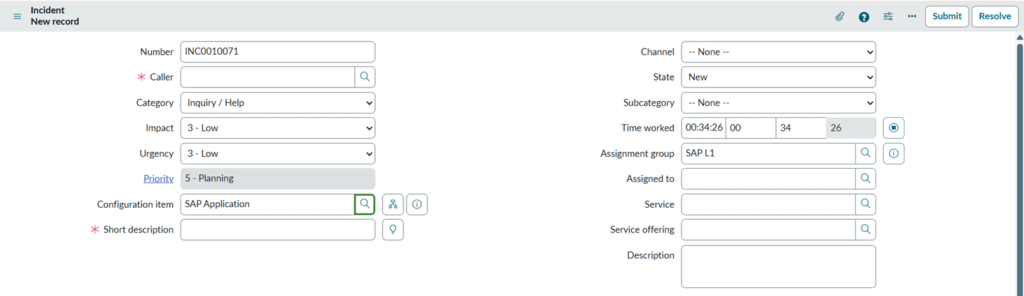
I reopened the Incident form and confirmed that the Process Flow now appears at the top of the form, displaying the Incident states clearly. This confirms all requirements have been met.