
This guide walks you step-by-step through configuring a Record Producer for an existing HR service
✅ Prerequisites
| Requirement | Description |
|---|---|
| Role needed | sn_hr_core.admin |
| Existing HR Service | You must already have an HR service created |
🚀 Goal
Make an existing HR service available to employees via self-service — without creating a duplicate service catalog item.
⚠️ Important Rule
Do NOT create a new HR Catalog Item.
Instead, configure a Record Producer for your existing HR service.
✔ One Record Producer per HR Service = Best performance and clean structure.
🧭 Step-by-Step Procedure
- Navigate to:
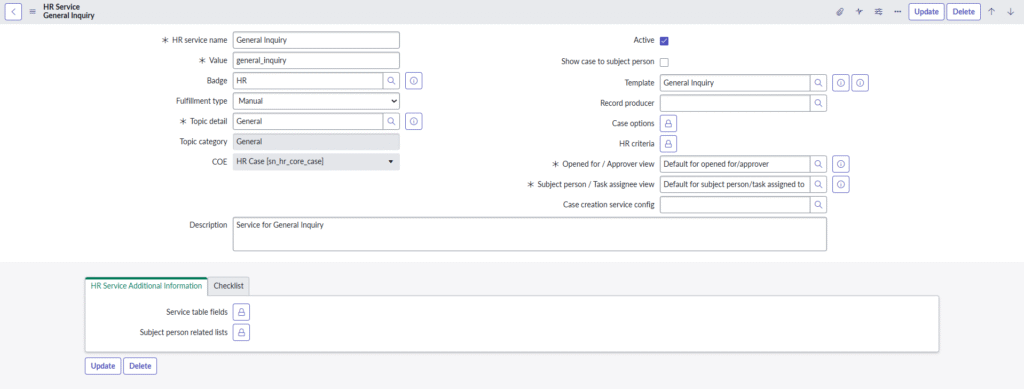
All > HR Administration > HR Services > HR Service Configuration - Open the HR service you want to expose to employees.
- In the Record Producer field:
- If one already exists → Click to open it.
- If not → Click the Lookup icon → New to create one.
📝 Fill Out the Record Producer Form

| Field | Description |
|---|---|
| Name | Name that users will see in the HR catalog |
| Table Name | Must be the same HR Case table used by the HR service |
| Application | Auto-set to Human Resources: Core |
| Active | Check to enable |
| Preview Link | Lets you see the catalog item preview |
⚙️ Configure Related Lists
Make sure the following related lists are set correctly:
✅ 1. What it will contain → Add this script:

new sn_hr_core.hr_ServicesUtil(current, gs).createCaseFromProducer(producer, cat_item.sys_id);
What does this script do?
It automatically creates an HR case from the record producer submission and links it to the correct HR service. Without it, the catalog item won’t launch the service workflow.
✅ 2. Accessibility → Set:
| Field | Value |
|---|---|
| Catalogs | Human Resources Catalog |
✅ 3. Variables
Variables define questions shown to employees when submitting the request.
Common variable types include:
| Variable Type | Use Case |
|---|---|
| Checkbox | Confirmations (e.g. “I acknowledge policy”) |
| Multiple Choice | Select options |
| Reference | Pick users/departments |
| Select Box | Dropdown choices |
| Single Line Text | Free text |
You can add as many variables as needed — their values will be mapped into the HR case.
✅ 4. Available For / Not Available For
Use User Criteria to control which employees can see or request this HR Catalog item.
📌 Note: This only affects employee visibility. It does not control which HR agents can request services internally. Agent-side access is managed separately in HR Criteria via Configure an HR Service.
✅ Finalize
- Click Submit or Update on the Record Producer form
- Then click Update on the HR Service form
🎉 Success!
Your HR service is now available in the HR Service Catalog, powered by a streamlined Record Producer — without duplicating catalog items.
